I will start by listing the contents of the workspace directory to see if there is an article or source file containing the text we need to translate. I will view the contents of the recently created JSON file to inspect the text that needs translation. I will read the python script `stateless_translate.py` in the workspace to understand how the translation process is set up. I will check the launch agent log to understand how the translation script is calling me. I will search the workspace to see how similar terms have been translated in previous Danish files or in related languages (like Swedish or Norwegian). I will search the translation changelog to see how the Swedish translation handled the title or crawler terminology. I will search the log to find the specific translation run for the Swedish version of the crawler whitelisting page. I will check the translation logs around the Swedish run to see what translated text it produced. I will run `git status` to see if there are any git-tracked files or untracked translation files in the workspace. I will list the files in the `scratch` and `parts` subdirectories to see if there are files containing translations. I will list the files in the `parts` subdirectory. I will search the workspace for any references to Danish to see if there are pre-existing Danish translations or rules. I will search for past successful Danish translations in the log to verify terminology choices like "whitelist/whiteliste" and "crawler/crawleren". I will search the `scratch/check_my_ja_translation.py` file to see if there are any references or patterns for translating "whitelist" and "crawler". I will search `translated_text.html` for "crawler" or "whiteliste" to see if there is any Danish or Norwegian/Swedish translation content saved there. I will view the first few lines of `translated_text.html` to understand what it contains. Whitelist CoreDash-crawleren på dit CDN
Dit CDN blokerer vores performance-tester. Her er, hvordan du slipper den igennem.

Trusted by market leaders · Client results



















Whitelist Core/Dash-crawleren
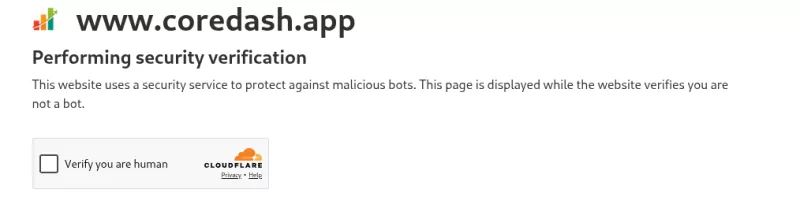
Nogle gange bliver vores crawlere blokeret af dit CDN's firewall. Det skyldes dit CDN's sikkerhedsindstillinger. Din hjemmeside vil vise en captcha, som vores crawlere ikke forsøger at løse.
Fjern blokeringen af Core/Dash-crawleren
Core/Dash-crawlere præsenterer sig for dine servere som Core/Dash performance tester:
CoreDash/1.0 (+https://www.corewebvitals.io/coredash-performance-tester)
Den indlæser din side i en rigtig browser og måler Largest Contentful Paint, Interaction to Next Paint og Cumulative Layout Shift. Den skal bruge en rigtig browser, fordi disse metrikker først eksisterer, når siden rent faktisk renderer.
Det er også den mest almindelige årsag til, at dit CDN blokerer os. Dit infra-team har sat din WAF-sikkerhed til høj, hvilket i praksis blokerer alle botter. Du skal fortælle dit CDN, at vi er den 'gode slags bot'.
Du tilføjer én regel, der springer bot-tjekket over for CoreDash/1.0 og lader alt andet være.
Tillad på user agent, ikke IP
Match på user agent, ikke en IP-adresse. Vores test kører fra cloud-infrastruktur, så kilde-IP'en ændrer sig mellem kørsler. Whitelister du en IP i dag, kan en test i næste uge komme fra en anden IP og blive blokeret igen. Strengen CoreDash/1.0 ændrer sig ikke, så match på den.
Cloudflare
Cloudflare blokerer vores test mere end noget andet CDN. Hvilken regel du har brug for, afhænger af dit abonnement.
På et Pro-abonnement eller højere skal du tilføje en brugerdefineret WAF-regel med handlingen Skip:
- Gå til Security > Security rules og opret en regel. På det nye dashboard ligger dette under Security rules.
- Giv den et tydeligt navn, for eksempel Allow Core/Dash.
- Klik på edit expression og ændr udtrykket til
http.user_agent contains "CoreDash/". - Sæt handlingen til Skip.
- Under Skip-indstillingerne skal du markere Super Bot Fight Mode. Marker også All managed rules, hvis det var en managed regel, der blokerede testen.
- Udrul reglen.

Der er dog én hage ved Free-abonnementet. Her kører Bot Fight Mode ikke igennem WAF'en, så en Skip-regel kan ikke påvirke den, og der kan ikke laves nogen undtagelse. Hvis du bruger Free, og testen bliver ved med at blive udfordret, skal du slå Bot Fight Mode fra under Security > Bots, mens du kører testen, og derefter slå det til igen. Et betalt abonnement giver dig Super Bot Fight Mode, som respekterer Skip-regler.
AWS WAF og CloudFront
CloudFront blokerer ikke i sig selv crawleren. Blokeringen kommer fra den AWS WAF web-ACL, der er tilknyttet din distribution. Tilføj en Allow-regel over din Bot Control-gruppe:
- Åbn den web-ACL, der er knyttet til din CloudFront-distribution.
- Tilføj en regel og vælg Rule builder, og derefter custom rule.
- Under inspektion skal du vælge Single header og indtaste
User-Agent. - Sæt match-typen til Contains string og strengen til
CoreDash. - Sæt handlingen til Allow.
- Giv reglen et lavere prioritetsnummer end din Bot Control-regelgruppe, så den kører først.
Rækkefølgen er vigtig her. Allow er en afsluttende handling i AWS WAF. Når din regel matcher, tillader WAF anmodningen og stopper evalueringen, så Bot Control aldrig ser den. Placerer du reglen under Bot Control, er blokeringen allerede sket, før din Allow-regel kører.
Stadig blokeret?
Hvis du tilføjer reglen, kører en ny test, og den stadig fejler, kommer blokeringen fra et andet lag: en anden WAF, et sikkerhedsplugin eller en serverregel i .htaccess eller nginx. Søg efter den samme CoreDash user agent der, og tillad den på samme måde. Hvis du sidder fast, så kontakt os med den firewall, du bruger, så hjælper vi dig med at finde reglen.

